
How to Get Your Black Friday Offer Into Google AI Overviews and AI Mode (2026)

Google already says customers can be shown your offers when they use Search AI Overviews. That is in Google’s own Business Profile offers help, and it is the part that is confirmed. What is new, and not a Google announcement, is that people are now seeing those offers look more like labels inside local AI answers, and seeing in-store inventory there too.
On November 16, 2026, Search Engine Watch reported that Gagan Ghotra had spotted two changes in Google AI Mode and AI Overviews: an offer label in local answers, and local store inventory in AI Mode when a Google Business Profile is mentioned. Ghotra tied both to Gemini 4 Hydrogen, which Google made the default model in AI Mode on November 12, 2026, and said it would use for the hardest questions in AI Overviews. Google did officially promise more visual answers, including images, structured responses and comparison tables. It did not announce offer labels or store inventory in those answers. Treat the screenshots as sightings that line up with a broader visual redesign, not as a feature launch.
The same week, Search Engine Watch also reported a separate test: about three sponsored units, including Shopping ads and sponsored results, appearing below AI Overviews in regular search. That is also a sighting, not a Google announcement. It is worth watching on Black Friday, but it is paid placement, not the offer-and-inventory work below.
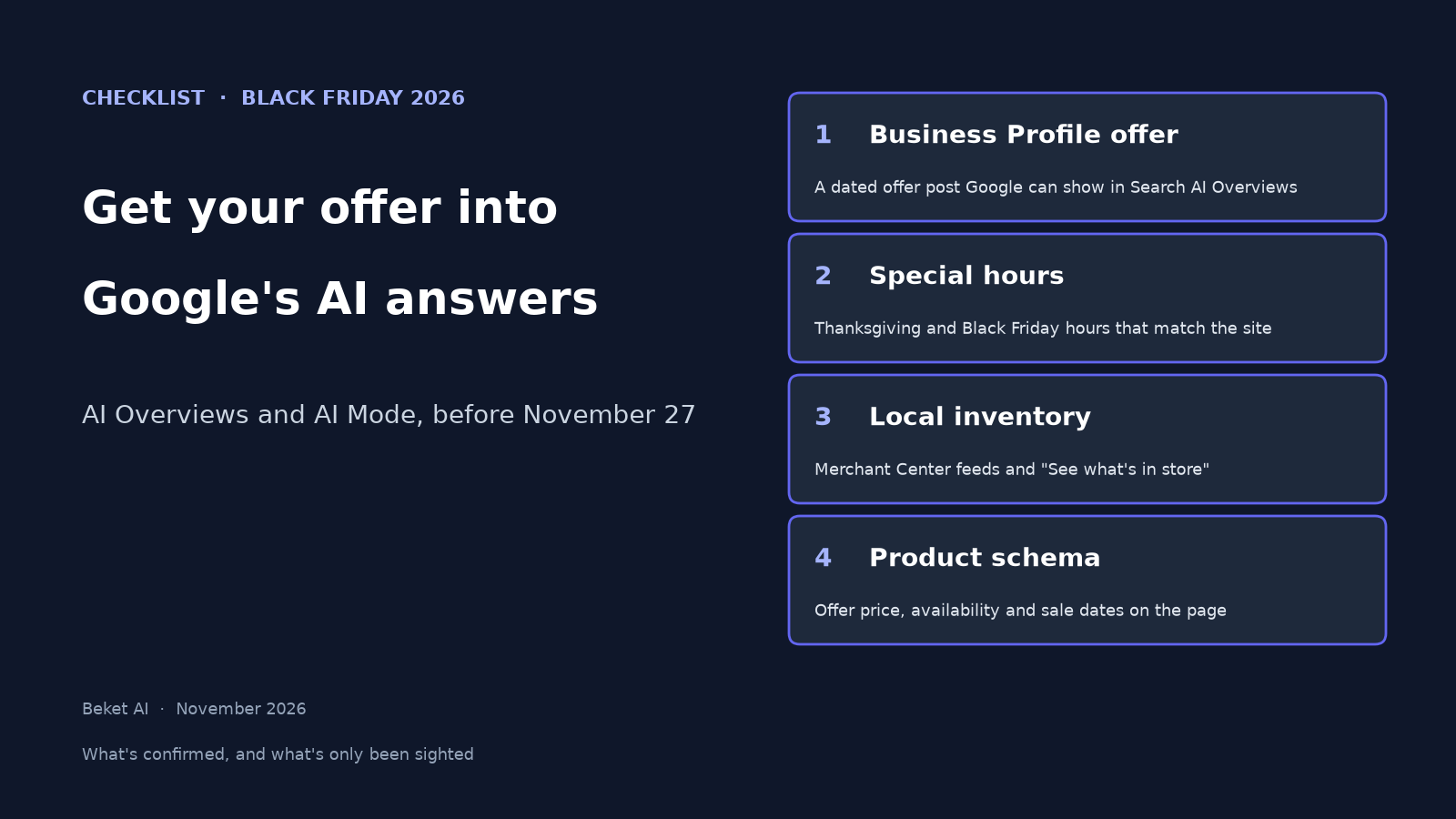
Black Friday 2026 is Friday, November 27. If you want a chance of your sale, hours or in-stock items showing up in those answers, the work is the same set of Google surfaces the company already documents: a Business Profile offer, local inventory in Merchant Center, product structured data that matches the page, and hours and prices that agree everywhere. Google’s own guide to AI features and your website says there are no extra technical requirements to appear in AI Overviews or AI Mode, and that inclusion is not guaranteed. It does tell you to keep Merchant Center and Business Profile information up to date, and to make structured data match the visible text on the page. That is the checklist.
1. Publish a Google Business Profile offer
Google treats an offer as its own post type, not a regular update. In Create and manage posts, Google says an offer post requires a title, dates and a time. That automatically adds a “View Offer” button. You can also add a description, photo or video, coupon code, link, and terms and conditions.
To publish one:
- Open your Business Profile, then choose Posts, then Add post.
- Select Offer, not Update or Event.
- Enter the title, the start and end dates, and the times. Add the optional fields if you have them, including a coupon code and a link to the sale page.
- If you want it to go live later, use the scheduler. When you are ready, select Post.
- Wait for the status to show as Live. Google reviews posts against its content policy. Pending or Not approved posts do not show on Search or Maps.
Google’s Manage offers page says customers may see special offers, discounts and promotional badges on your Search placesheet, as collapsible chips next to or below buttons such as Order online or Reserve a table. The same page says users can be shown offers when they interact with Search AI Overview. That is the confirmed path from an offer post into an AI Overview. It is not a promise that every offer will appear, or that it will appear as the new visual label people have been spotting.
Two caveats matter before you spend the afternoon on this. First, Google says the offers feature is available only in select regions and languages, and may not be available for all users. If you do not see Offer as a post type, check that the profile is verified, and that the feature is offered in your country and language. Second, offers can also arrive from authorized third-party partners or from promotions Google finds on linked social profiles. If a stale or unauthorized third-party offer is sitting on your profile, Google’s removal steps are worth doing before Black Friday, so the wrong deal is not the one an AI answer repeats.
Write the title the way a shopper would ask for it, such as “20% off all winter coats, Friday through Sunday,” rather than a slogan. Put the real dates and the real terms in the post. If the deal changes, edit the post. Google archives posts older than six months unless a date range is set, which is one more reason to give the offer an end date.
2. Set special hours for Thanksgiving and Black Friday
Shoppers will ask when you are open, and AI answers will use the hours Google has on file. For a short change, such as a holiday or a late shopping night, use special hours, not a rewrite of your regular week. Google says you can set special hours when you temporarily adjust hours or stay closed for up to six days in a row, and that it is a good idea to confirm hours for official holidays even when they match your usual schedule.
In the profile, go to Edit profile, then Hours, then edit Special hours. Add Thanksgiving Day (Thursday, November 26, 2026) and Black Friday (Friday, November 27, 2026), and any Saturday or Sunday hours that differ from a normal weekend. Mark a day closed if you are closed. Special hours only show if the profile is set to “Open with main hours.”
Then put the same hours on your website, in a place Google can read as text, not only in an image or a PDF. Google’s guidelines for representing your business require the profile to reflect the business accurately, including hours. If the site says 8 a.m. to midnight and the profile still shows your regular 10-to-6 Friday, that is the kind of mismatch an answer can get wrong.
3. Send local inventory so Google can show what’s in store
The inventory sighting is about whether a local answer can say you have the item in stock. Google already has a documented way to supply that data: local inventory in Merchant Center, which powers free local listings and the “See what’s in store” unit on your Business Profile in Search and Maps. When you give Google local inventory, you can run paid local inventory ads, free local listings, or both. Free local listings are the organic version: they can show products and store information to nearby shoppers on Search, Maps, the Products tab and the Business Profile, and they can tell a shopper whether the item they searched is in stock.
You do not have to be a national chain to do this. For a smaller store, Google’s in-store products help explains a no-charge path that creates the feeds for you, through the Local Inventory app for compatible point-of-sale systems, through delivery partners, or by adding products manually in the Product Editor. Eligibility for the automatic path is limited: a verified profile, a physical store in the United States, Canada, the United Kingdom, Ireland or Australia, an eligible vertical, and products with manufacturer barcodes or a compatible POS system.
If you already use Merchant Center, upload local inventory data as a supplemental source. Google says you can upload a file, use the Merchant API, let Google collect in-store availability from your website, or work with an approved data provider. A file should be refreshed daily. After you link accounts or change a store code, Google says it can take up to 24 hours to sync locations, so do not leave this until Wednesday evening.
The local inventory data specification requires three attributes for each product-and-store row: an id that matches the id in your primary product feed, a store_code that matches the store code on your Business Profile (it is case-sensitive), and availability, using Google’s exact values such as in_stock or out_of_stock. Google’s upload guide also says to include quantity and price to keep the data complete. If a product is on sale in that store, add sale_price as well as the regular price, and set sale_price_effective_date as an ISO 8601 start and end, separated by a slash. If you omit the date range, Google says the sale price always applies, which is a problem when Black Friday ends.
Prices in the feed must match the price in the store. Availability must match the shelf. That sounds obvious, and it is the part that usually breaks on a sale weekend, when stock moves faster than a weekly file.
4. Put the sale on the product page, in structured data
A Business Profile offer and a Merchant Center feed tell Google about the deal. The product page still has to say the same thing, in text and in markup. Google’s merchant listing documentation for Product and Offer structured data is the page to follow, with the shorter product snippet guide for the basic fields.
On each product page you care about for Black Friday:
- Use a
Productwith a nestedOffer. - Set
priceto the price a customer would actually pay right now, which is the sale price while the sale is on, and setpriceCurrencyto a three-letter ISO code such as USD. - Set
availabilityto the single most accurate value, such asInStock,InStoreOnlyorOutOfStock. - If you want Google to show sale pricing, add the original price as a
priceSpecificationwithpriceTypeset tohttps://schema.org/StrikethroughPrice. Do not mark the current sale price withpriceType. - Give the sale a duration. Google’s sale-duration guidance uses
validFromfor the start, and eithervalidThroughorpriceValidUntilfor the end, in ISO 8601 format, including time and timezone when you can. ApriceValidUntildate in the past can keep the listing from showing.
The same facts have to be visible on the page. Google’s AI features guide says structured data should match the visible text, and that important content should be available as text, not only in images. If the crossed-out price is in a banner graphic and the markup still has last week’s price, you have given Google two different answers. Validate the markup with Google’s Rich Results Test, and give the crawler time to recrawl. Google notes that this can take several days, which is why sale markup belongs on the page before the weekend, not on Friday morning.
5. Make the facts match everywhere, then check the answers
By Black Friday you should be able to pick one product and one store and see the same price, sale dates, availability and hours in four places: the website, the Business Profile, the Merchant Center inventory, and the structured data. If any one of them disagrees, that is the version an AI answer might pick.
Then check the thing this post is actually about: whether Google’s AI answers mention you.
Make a short list of the questions a shopper would ask, in the city you serve, without your brand name in every query. Examples: “best Black Friday TV deals near me,” “which stores have [product] in stock in [city] today,” or “is [store type] open on Black Friday in [neighborhood].” Run each one in regular Google Search, where an AI Overview may appear, and in AI Mode. Note whether your offer, hours or in-stock item is in the answer, whether a competitor is named instead, and whether anything is wrong. If you see sponsored units under an AI Overview, record those separately. That placement is the test Search Engine Watch described, not an organic offer label.
One pass on your laptop is a snapshot. In our Black Friday shopping study, the same 25 shopping questions in Vancouver and Seattle produced 61 mentions for Best Buy (25 in Vancouver and 36 in Seattle). Amazon was not among the stores named two or more times in either city, and the mix shifted by engine. A companion Google AI Overview vs ChatGPT study found that local independent stores made up 36.2% of ChatGPT’s Seattle store mentions and 7.8% of Google AI Overview’s. Google’s local answers leaned toward larger retailers, which is exactly why a complete Business Profile, a current offer and accurate local inventory are worth doing before the weekend. The same audits, written up as a Vancouver vs Seattle Christmas shopping study, showed the answers also differ by city, so check the market you actually serve.
Beket AI tracks six engines, including Google AI Overviews and Google AI Mode, so you can keep a fixed prompt list running instead of checking by hand every day. A free audit runs 25 prompts on any 3 of those 6 engines and shows who gets named and what the answers get wrong. Beket AI Pro is $49 a month per site and starts at 50 prompts a day. We report what the answers say. Your team still makes the changes on the profile, the feed and the site.
For the wider work of getting a local page cited at all, use our guide on how to show up in Google AI Overviews. This checklist is the offer, inventory and hours layer on top of that.
Before Friday, in one list
- Publish a live Business Profile offer, with real dates, times and terms, and remove any stale third-party offer.
- Set special hours for Thanksgiving, Black Friday and any other weekend days that change, and put the same hours on the site.
- Turn on free local listings or the Local Inventory app, and send a daily inventory file (or an automatic update) with matching store codes, prices and availability.
- Update product pages so the visible price, sale dates and stock match
Offerstructured data, including a sale end date. - Recheck one product in all four places, then run your shopper questions in AI Mode and in regular Search, and keep checking through the weekend.
None of this guarantees a label in an AI answer. Google has confirmed that offers can appear in Search AI Overviews, and it has asked you to keep profile, Merchant Center and on-page facts current. The new visual labels and in-answer inventory are still sightings. The work above is still the right work, because it is how Google says it learns the deal, the hours and what you have in the store.
Related posts
Beket AI vs Ahrefs: AI Visibility and Agent Analytics Compared (2026)
Beket AI vs Ahrefs Brand Radar for AI visibility: prompt tracking prices, engines, bot analytics and AI traffic, from published pages (Nov 2026).
Ahrefs Brand Radar Review (2026): An Honest Look at Ahrefs' AI Visibility Features
An honest review of Ahrefs' AI visibility tools: Brand Radar's index, Custom Prompts, Bot Analytics and Web Analytics. Pros, cons, real costs and who it suits.
Which Publications Does AI Cite Most? A 2026 Study of ChatGPT, Perplexity and AI Overview Sources
Which sites do ChatGPT, Perplexity and Google AI Overviews cite? A Beket AI study of 252 citations on 10 US buying questions, plus 166 audits.