
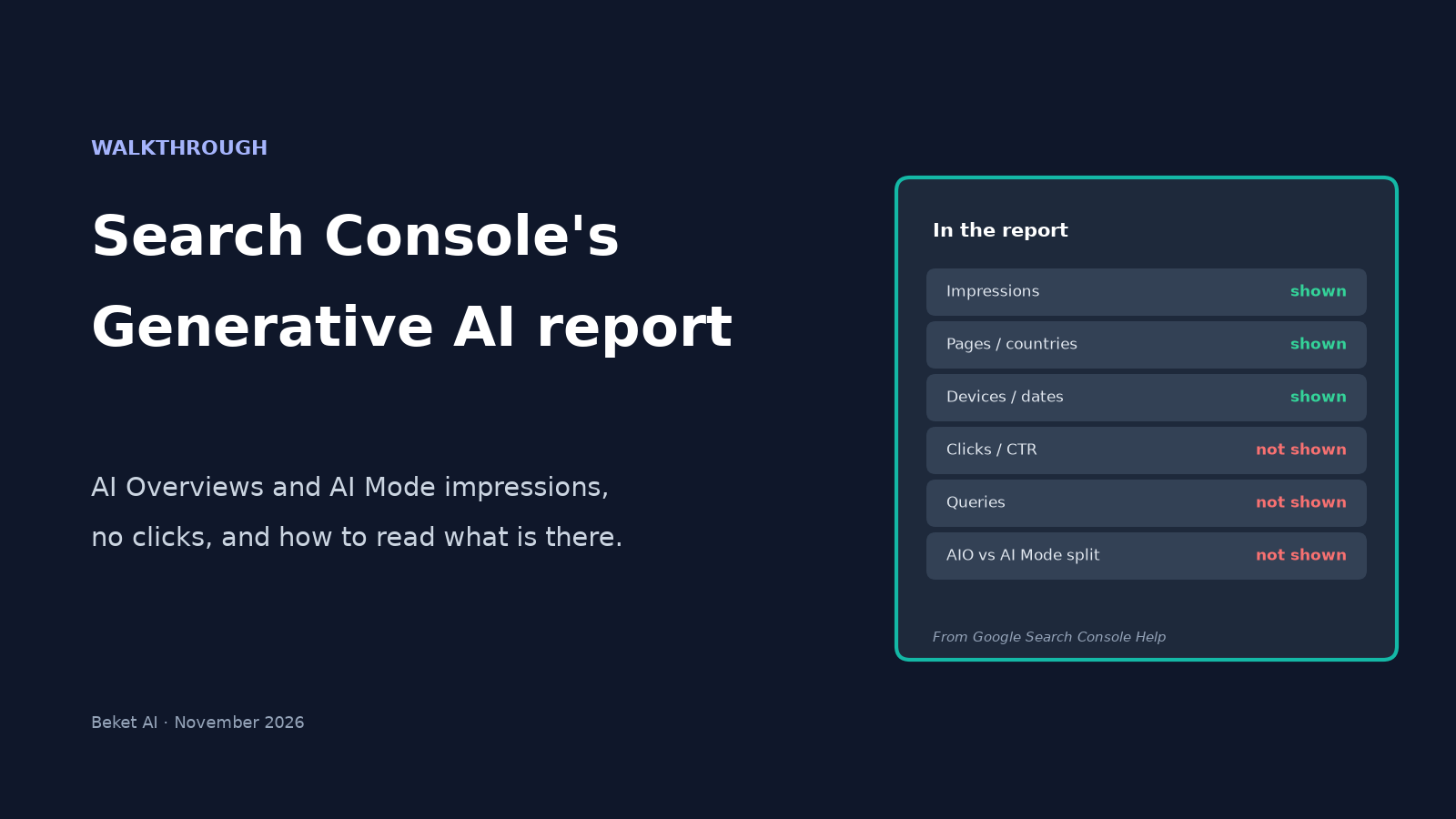
How to Read Search Console's Generative AI Report

Google Search Console now has a dedicated report for generative AI. As of August 31, 2026, every verified site can open it. The report answers one question well: how often links to your pages were shown inside AI Overviews and AI Mode. It does not answer the questions most site owners ask next: who clicked, which searches triggered the answer, or whether your brand was named in the text.
This walkthrough opens the report the way Google documents it, then shows what the numbers mean when clicks are missing, why a small site may still see an empty screen, and how this view differs from Bing's AI Performance report and from tracking ChatGPT visits in Google Analytics.
What the Generative AI report is
Google launched the Search Generative AI performance reports on June 3, 2026 for a subset of sites, then finished the worldwide rollout on August 31. There is a Search version and a separate Discover version. This guide covers the Search report.
According to Google's Generative AI performance report help page, the Search report includes impressions from:
- AI Overviews
- AI Mode
It does not include Search Labs experiments. Google says it expects to expand the list of features over time. Discover generative AI has its own report; do not mix the two when you compare totals.
The same help page defines an impression here as how many times links to your site were shown to a user in a generative AI feature on Google Search. That is a visibility metric, not a traffic metric. For the counting rules Google applies inside AI Mode and AI Overviews (including follow-up questions in AI Mode counting as a new query), see What are impressions, position, and clicks?.
Where to find it in Search Console
Open Search Console for the property you care about, then open the Generative AI performance report from Performance. Google's help page links it as Open the Generative AI performance report. After the first visit, many properties also see Generative AI under Performance in the left menu.
You are looking for a chart with a single metric card: total impressions. There is no clicks card, no CTR card, and no average position card on this report.
How to read the chart and the four tabs
The chart shows property-level impressions over the date range you pick. Google notes two reading quirks that matter in practice:
- Aggregation. If two of your URLs appear in the same generative AI result, the chart counts that as one impression for the property. Filter to a single URL and the chart aggregates by URL instead.
- Preliminary data. The newest points can still be collecting. Google marks them with a dotted line and says they may change in the next few hours.
All dates in the report are in Pacific Time, same as the regular Performance report.
Below the chart, four tabs regroup the same impression data:
| Tab | Groups by | Quirk to remember |
|---|---|---|
| Pages | The final URL linked after redirects | Most data is assigned to the canonical URL, not a duplicate the user may have seen |
| Countries | Where the search came from | Aggregated by property, so totals line up with the chart |
| Devices | Desktop, tablet, or mobile | Search report only; Discover has its own report |
| Dates | Day, week, or month | Use for trend lines, not day-to-day noise |
You can also filter by search type at the top of the report: Web: text-based (typed queries) or Web: multimodal (image searches such as Lens, Circle to Search, uploaded images, and Chrome image search), per the same help page.
Export is available for both the chart and the table. Values shown as ~ or - in the UI become zeros in the download.
What impressions mean when there are no clicks
An impression in this report means a link to your page was shown inside an AI Overview or an AI Mode answer. It does not mean:
- Someone clicked through to your site
- Your brand was named in the answer text
- You know which query produced the answer
- You can calculate CTR for AI features
Clicks from AI Overviews and AI Mode are not orphaned. Google's documentation on AI Mode and AI Overviews says clicking an external link in either feature counts as a click. Those clicks sit inside the regular Performance report under the Web search type, mixed with ordinary blue-link clicks. The Generative AI report simply does not isolate them.
Google also says generative AI impression data is already included in the Web search type of the regular Performance report. Do not add Generative AI impressions on top of your Web totals; you would double-count visibility.
An impression with no click can still matter if the answer named you and the person called, booked, or searched your brand later. The Generative AI report cannot prove that path; it only tells you that a link was shown.
AI Overviews vs AI Mode: one combined number
The report lists both AI Overviews and AI Mode as included features. Google's help page does not describe a filter that splits them. Until Google adds one, treat the impression total as a combined figure. A rise or drop can come from either surface, or from both.
If you need the product difference between the two features themselves (how they answer, how they link, how they behave on follow-ups), that is a separate topic: AI Mode vs AI Overviews.
Why small sites often see nothing
Google's help page is direct: if you are not seeing the report, it usually means the site has not received enough impressions in generative AI features on Google Search. Worldwide availability does not mean every property has a filled chart. A site that rarely appears as a linked source in AI Overviews or AI Mode will look empty even though the feature has rolled out.
The other common cause is the property-level Search generative AI control. Under Settings > Search generative AI, the default is to include your site. If someone set the property to exclude links and content from Search generative AI features, Google says you will not receive traffic or impressions from those features. Confirm the control is set to include before you treat a blank report as a ranking problem.
What to do with the data you do have
Once impressions appear, the useful work is comparative, not celebratory.
- Sort the Pages tab. The URLs with the most AI impressions are the ones Google's generative features already treat as sources. Keep them accurate, dated, and fast. Avoid reshaping them without a reason.
- Compare AI impressions to classic Web impressions for the same page and dates. Export the Generative AI Pages table and the regular Performance Pages table for the same 28 days. The ratio is a rough AI share of impressions for that URL. Treat it as a direction, not a precise traffic share, because the two reports aggregate differently.
- Find pages that rank but never appear in AI. High Web impressions with zero Generative AI impressions are the interesting gap: Google shows the page in classic results but does not surface its link inside AI answers. Those pages are candidates for clearer answers, fresher facts, and better coverage of follow-up questions.
- Read changes over weeks, not days. Preliminary data moves, AI features vary, and a single day is noise. Annotate content updates so you can connect a curve later.
- Use country and device tabs for audience, not vanity. If almost all AI impressions are mobile and from one country, that is where the visibility is concentrated.
A longer playbook for pairing this report with GA4 engagement and landing-page before/after checks is in How to Track AI Overview Traffic in Search Console and GA4. This post stays inside the Generative AI report itself.
How this differs from Bing and from GA4 ChatGPT tracking
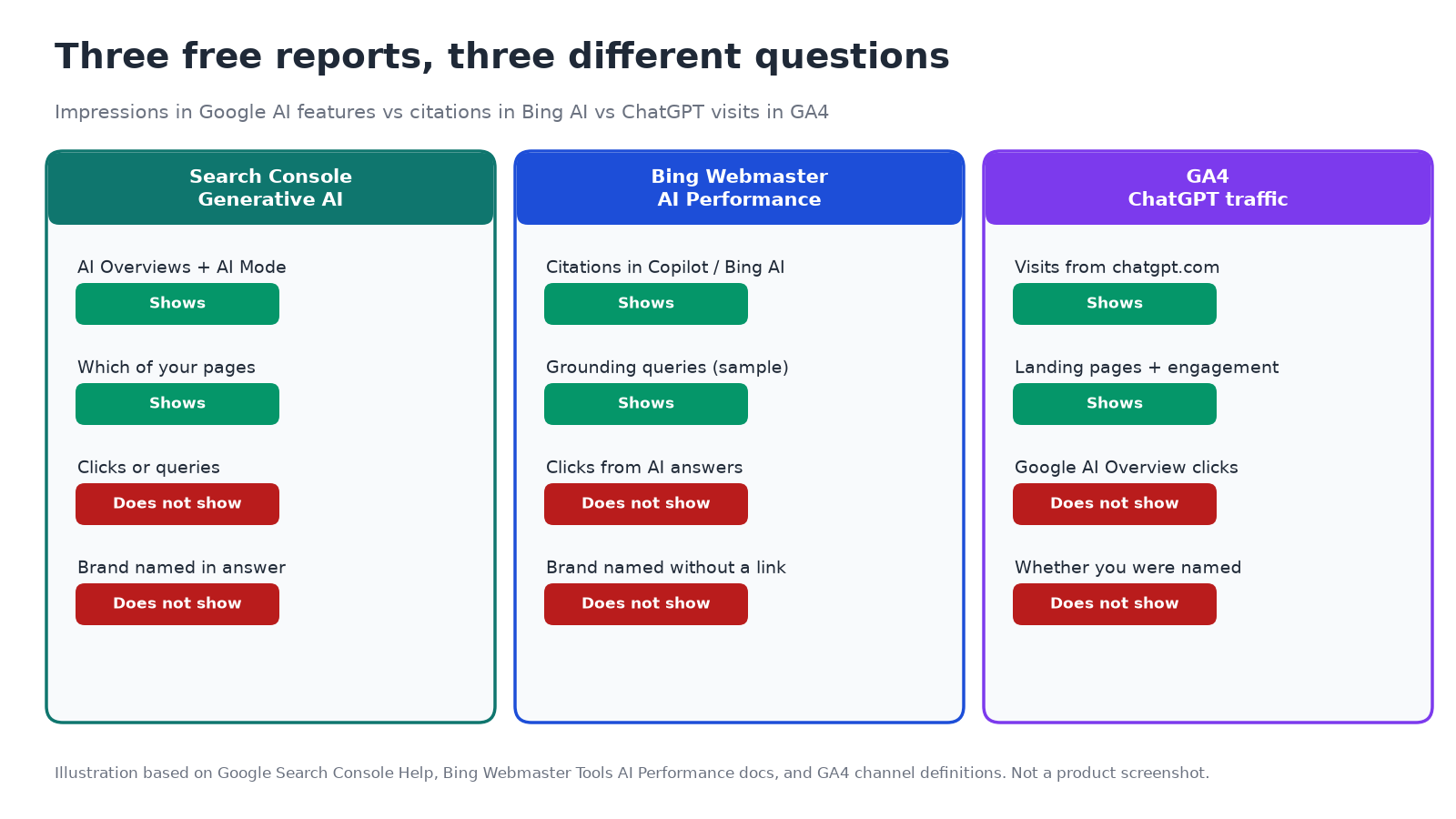
Three free reports answer three different questions. Mixing them produces bad conclusions.
Search Console Generative AI tells you when Google showed a link to your page inside AI Overviews or AI Mode. It is Google-first, impressions-only, and silent on queries.
Bing Webmaster Tools AI Performance is the contrast case. Microsoft's report counts citations across Copilot and Bing AI surfaces and surfaces grounding queries (as a sample), page-level citation counts, and related views such as Citation Share. It still does not give AI click data, but it is far closer to "when were we used as a source, and for which themes?" We walk through that report in Bing AI Performance Report: How to See When Copilot Cites Your Site.
GA4 ChatGPT traffic answers a third question: did someone arrive on your site from ChatGPT? You look for chatgpt.com under Session source / medium, optionally build an AI assistants channel group, and remember that some ChatGPT visits land in Direct. That is referral analytics, not Google AI Overview visibility. The step-by-step is in How to Track ChatGPT Traffic in GA4.
Put plainly:
| Question | Best free place to look |
|---|---|
| Were our URLs shown in Google AI Overviews or AI Mode? | Search Console Generative AI report |
| Which Bing / Copilot grounding queries cited us? | Bing AI Performance report |
| Did ChatGPT send visits we can measure? | GA4 Traffic acquisition |
| Was our brand named in the answer text, with or without a link? | None of the above |
The gap Search Console still leaves
The Generative AI report is progress. Site owners can finally see AI-feature impressions without guessing from total Web charts. The gaps that remain are structural:
- No queries, so you cannot see which buyer questions surface your links
- No clicks isolated to AI features
- No split between AI Overviews and AI Mode
- No signal for brand mentions that never include a link
That last gap is the one most local and B2B businesses care about. A buyer can read an answer that names three competitors and never see your URL. Search Console will correctly show zero impressions for that moment, and you still lost the recommendation.
Beket AI fills that visibility gap by auditing how ChatGPT, Perplexity, and Google AI Overview answer the unbranded questions your buyers actually ask. The free audit covers 25 prompts across those three engines. Pro is $49/month for daily re-audits starting at 50 prompts across 3 engines. Integrations today are Webflow, Google Analytics, and Cloudflare. Beket AI reports which businesses get named; it does not claim to apply fixes to your pages or to trace every Search Console impression back to a prompt.
A practical reading routine
Once a month:
- Open the Generative AI report for the last 28 days and the previous 28 days.
- Export the Pages tab for both ranges.
- Note the top five URLs by AI impressions and any page that fell off the list.
- Spot-check those pages live in AI Overviews and AI Mode for a handful of category queries (not as a substitute for the report, as a sanity check).
- Pull Bing AI Performance citations for the same month if you care about Copilot.
- Pull GA4 ChatGPT (and other AI assistant) sessions if you care about measurable visits.
You will leave with three different numbers. That is expected. Impressions, citations, and referrals are not the same event.
About the author: The Beket AI Team builds Beket AI, an AI search visibility platform for brands and agencies.
Sources checked November 4, 2026: Google Search Central announcement, Generative AI performance report (Search) Help, impressions / clicks documentation including AI Mode and AI Overviews, and Search generative AI control. Report UI labels can change; confirm in your Search Console property.
Related posts
Does ChatGPT Recommend Your Business? How to Check by Hand, and What Zero Mentions Means
How to check by hand whether ChatGPT, Perplexity and Google AI Overview recommend your business, using unbranded questions, and what zero mentions means.
How to Check ChatGPT Brand Sentiment: Ask What's Wrong With Your Business
Negative prompts dropped ChatGPT brand sentiment to -36 vs +20 for neutral ones. How to test problem, value and flipped comparison prompts, and what to fix.
How to See Which AI Agents Visit Your Site (and Whether They Can Book or Buy)
Microsoft Clarity's free Agentic Analytics shows which AI agents visit your site and what they do. How to set it up, read it and test bookings and checkout.