
How to Track AI Search Traffic in GA4
Give ChatGPT, Perplexity, Claude, Gemini and Copilot visits their own GA4 channel, see which pages they land on, and count the signups they bring.

On this page
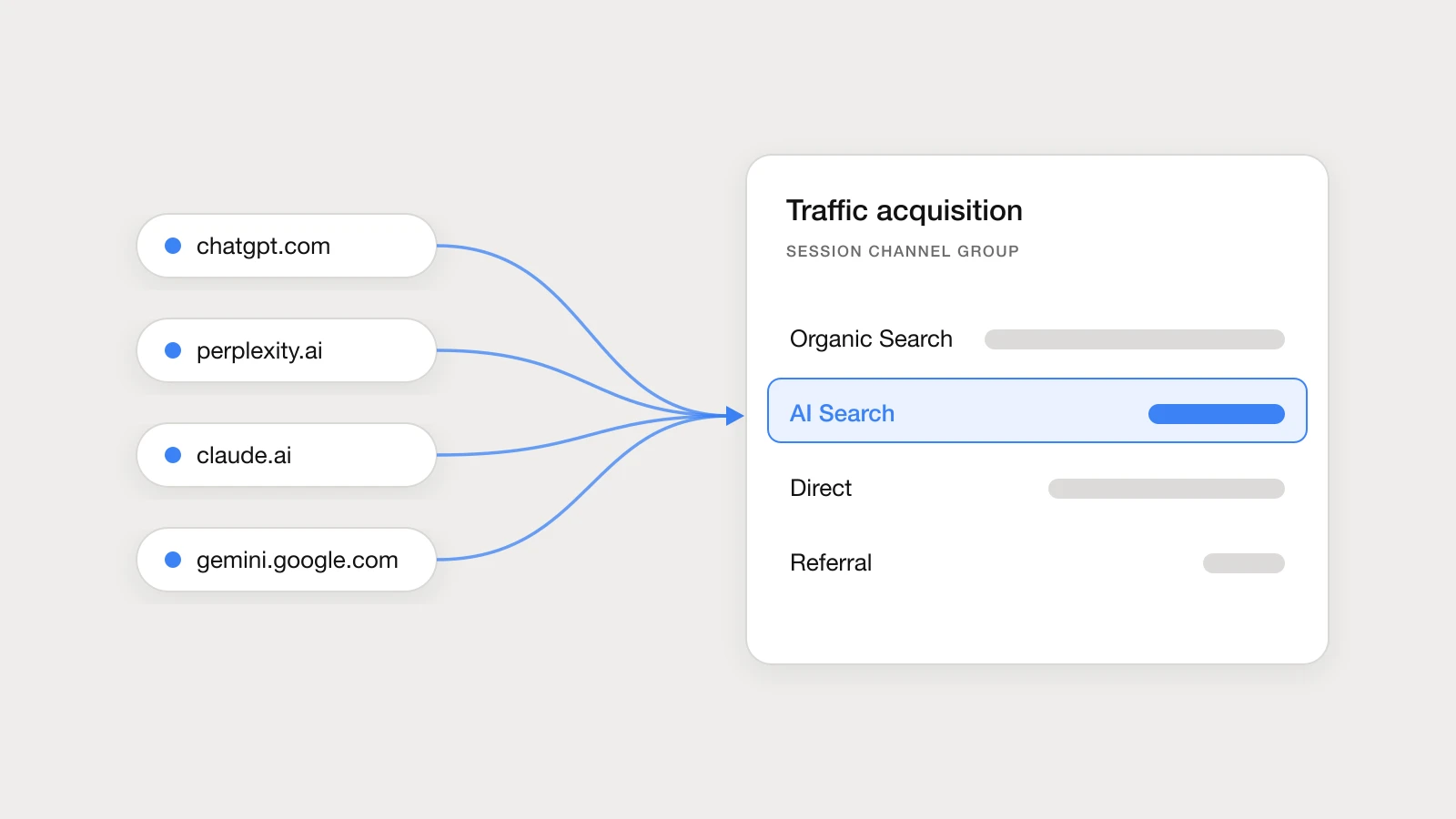
AI assistants now send real visitors, and Google Analytics 4 has started to notice: its default channels include an AI Assistant channel. But you can’t see or edit the list of sources behind it, and any assistant it doesn’t recognise still lands in Referral, next to every blog that ever linked to you. So you can’t fully trust how much traffic AI search brings, which pages it sends people to, or whether those visitors convert.
This guide fixes that in about 20 minutes, with no code: an AI Search channel you control, two reports to read it, a key event to judge it by, and a monthly check to keep it accurate. It also covers what GA4 can’t see, so you know how far to trust the number.
Looking for Claude only? Jump to Claude referral traffic.
What GA4 can and can’t see
GA4 only counts people who click a link in an AI answer and land on your site with JavaScript running. Everything else either hides in another channel or never reaches GA4 at all.
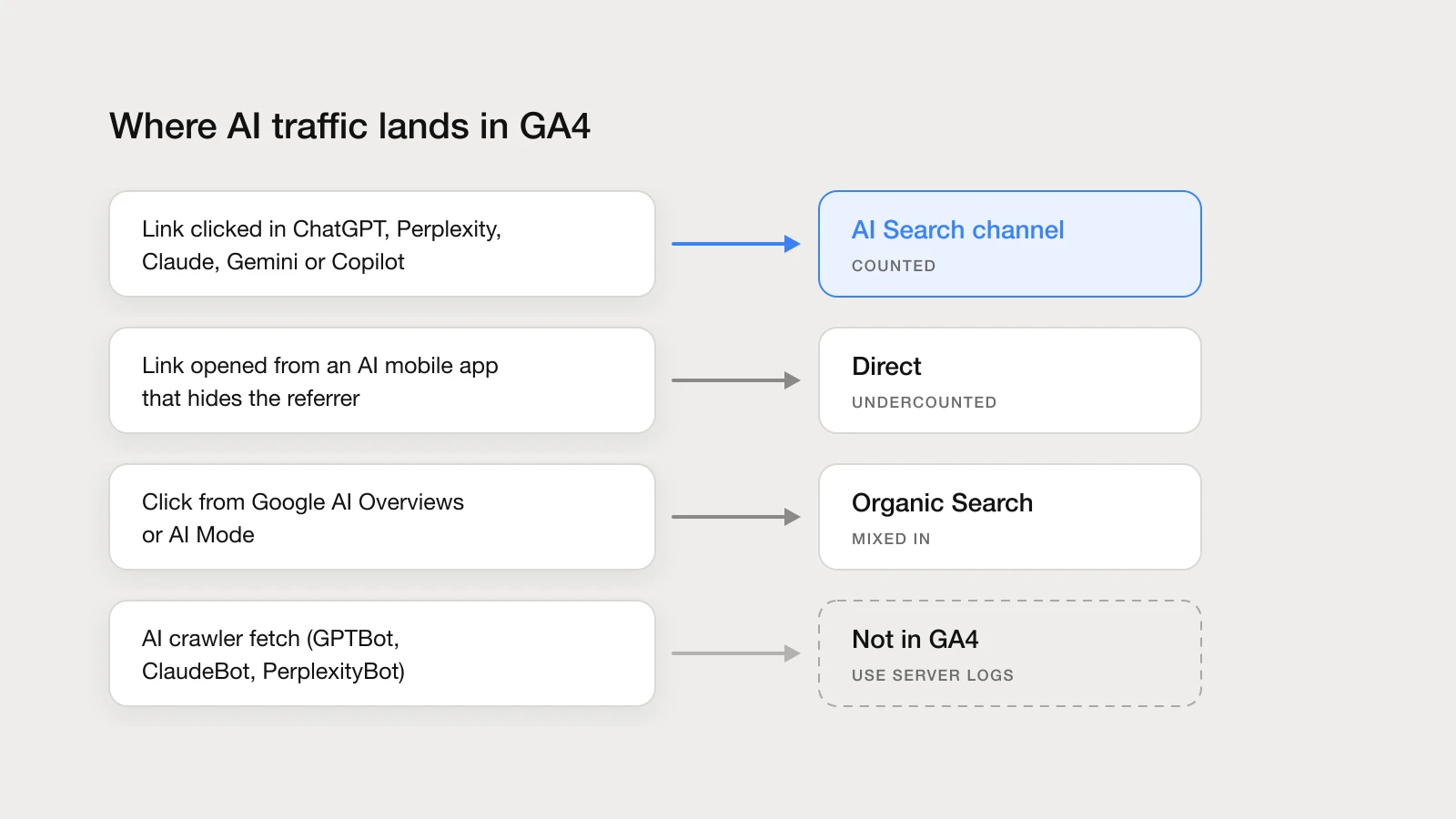
| Traffic | Shows up in GA4 as | Countable? |
|---|---|---|
| ChatGPT | source chatgpt.com, medium ai-assistant (ChatGPT also adds utm_source=chatgpt.com to links) |
Yes |
| Perplexity | source perplexity.ai |
Yes |
| Claude | source claude.ai |
Yes |
| Gemini | source gemini.google.com |
Yes |
| Microsoft Copilot | source copilot.microsoft.com, sometimes edgeservices.bing.com |
Yes |
| DeepSeek, Grok, Meta AI, Mistral, You.com, Phind, Poe, Kagi | their own domain as source | Yes, once in the regex below |
| AI mobile apps that strip the referrer | (direct) / (none) |
No: lands in Direct |
| Google AI Overviews and AI Mode | google / organic |
No: use Search Console |
| AI crawlers such as GPTBot | nothing (crawlers don’t run JavaScript) | No: use server logs |
Treat your AI Search number as a floor, not a total. Real AI-driven visits are higher, because some arrive without a referrer and many AI answers are zero-click in the first place.
Step 1: Create an AI Search channel you control
GA4’s default channel group now ends with an AI Assistant channel, and GA4 gives some AI visits the medium ai-assistant. It’s a good start, but it’s predefined: you can’t see which sources it covers, add a new assistant, or check what it misses. A custom channel group fixes that. It applies to your past data too, so the history fills in as soon as you save.
-
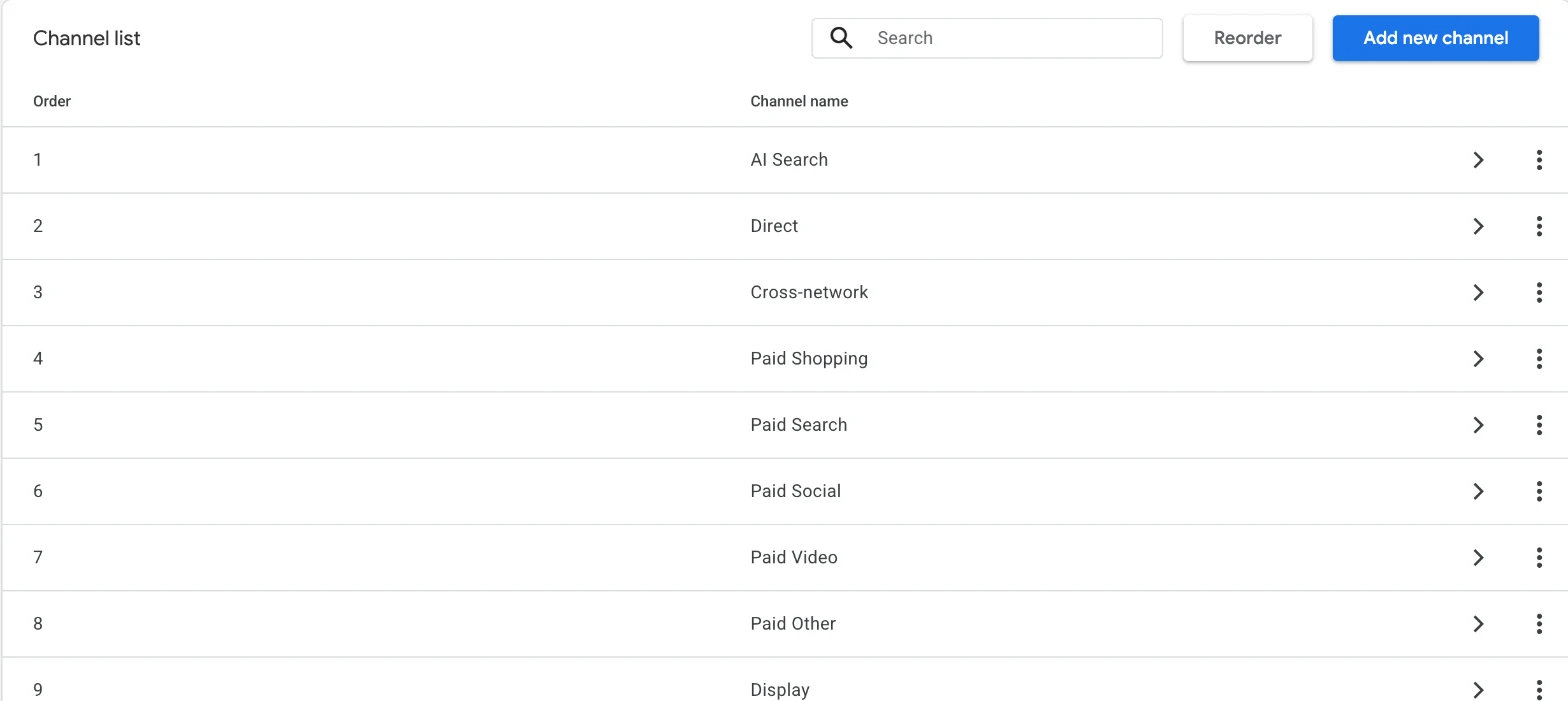
Go to Admin → Data display → Channel groups and click Create new channel group. Give it any name. It starts as a copy of the default channels.
-
Click Add new channel. Name it
AI Search. -
Add two conditions in one group, so a session needs to match only one of them:
- Medium · matches exactly ·
ai-assistant - Source · matches regex · paste this pattern:
.*(chatgpt|openai|gemini|bard\.google|aistudio\.google|claude|anthropic|perplexity|copilot|edgeservices\.bing|deepseek|grok|\bx\.ai|meta\.ai|ai\.meta|mistral|phind|poe\.com|you\.com|kagi|duck\.ai|qwen|kimi).* - Medium · matches exactly ·
-
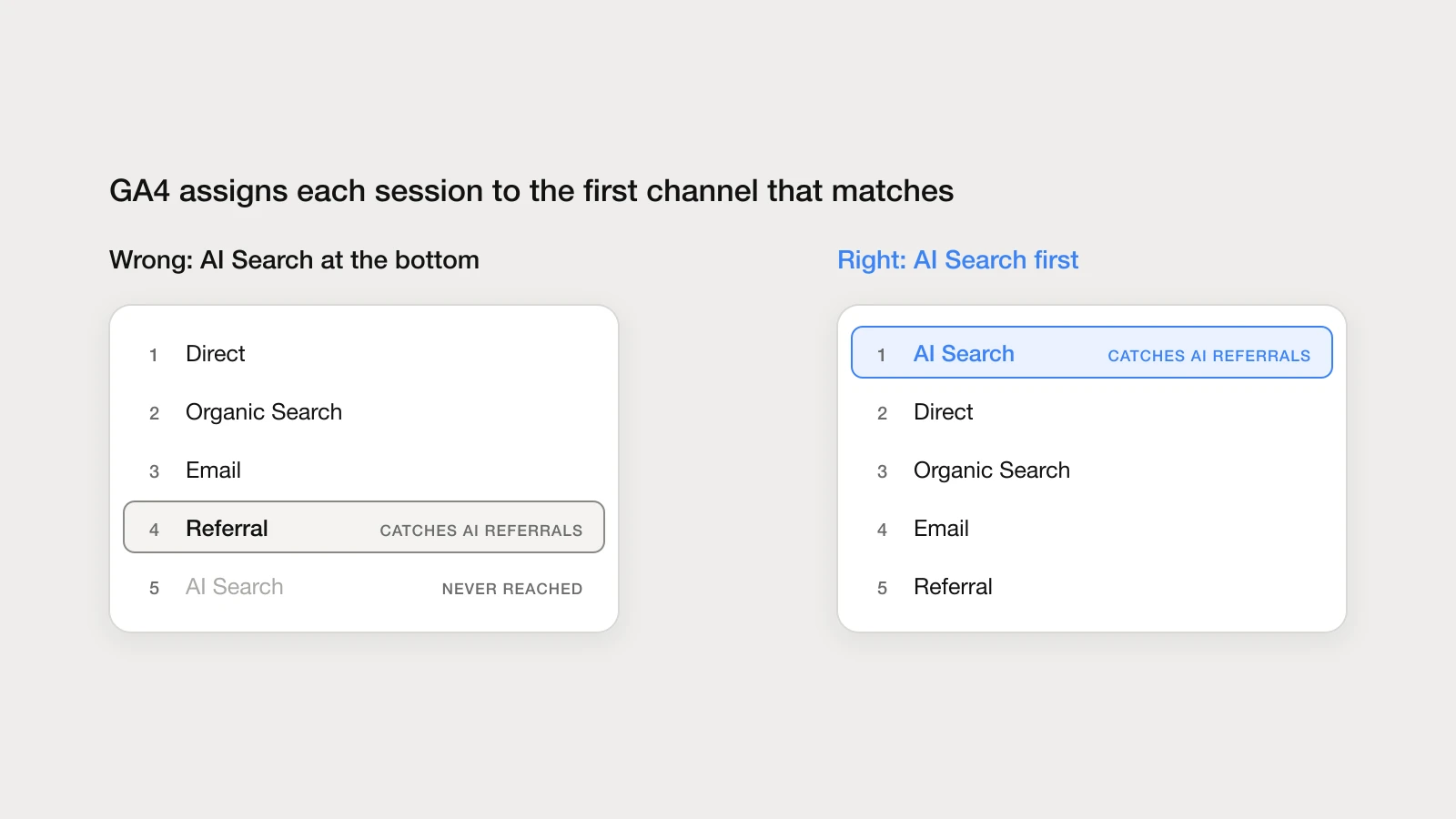
Save the channel, then click Reorder and move AI Search to the top, above Referral and the built-in AI Assistant channel.
-
Save the channel group. Then, on the Channel groups page, edit Primary channel group and pick your new group, so every standard report uses it.
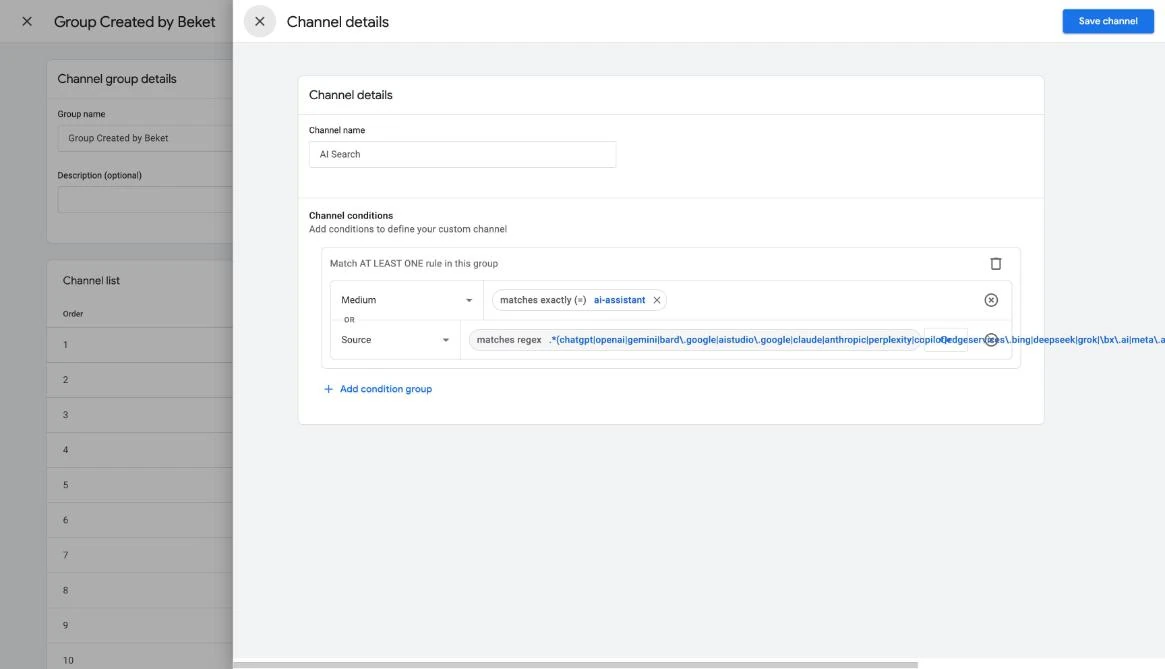
Keep both conditions. The medium rule picks up every visit GA4 already labels as AI. The source rule catches the assistants GA4 doesn’t, and ChatGPT’s utm_source=chatgpt.com links when they arrive without a medium. The pattern matches on names rather than full domains, so it also catches subdomains such as chat.openai.com and gemini.google.com. The \b before x\.ai stops it from matching domains that merely end in “x.ai”.
Order matters more than anything else in this step. GA4 checks the channels from top to bottom and assigns each session to the first one that matches. Referral matches every site that links to you, so an assistant GA4 still labels as a referral never reaches an AI Search channel placed below it.
Step 2: Read your AI Search traffic
Traffic acquisition with the new channel
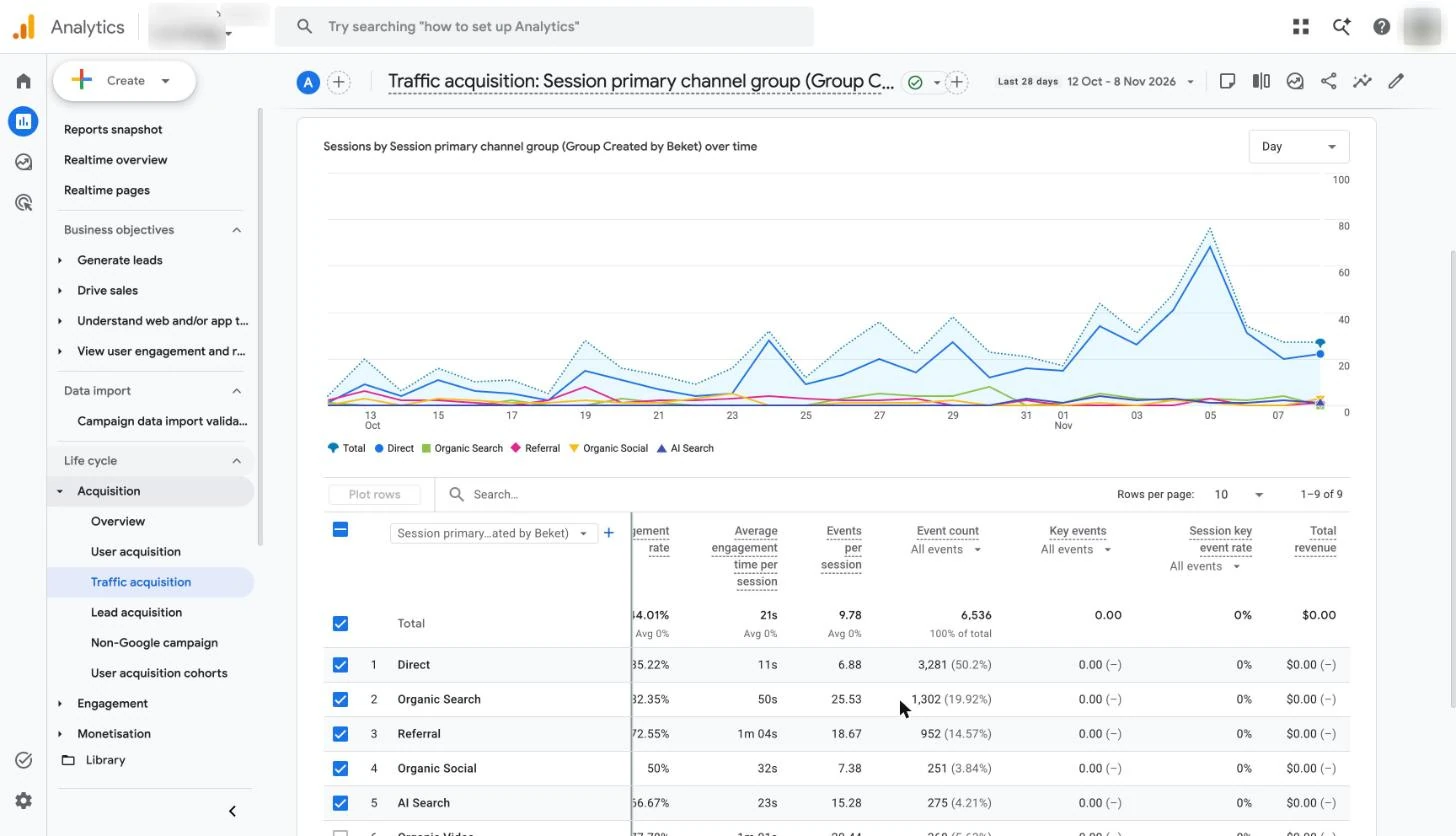
Open Reports → Acquisition → Traffic acquisition. With your group set as primary, the table is already split by Session primary channel group, and AI Search has its own row next to Organic Search, Direct and Referral.
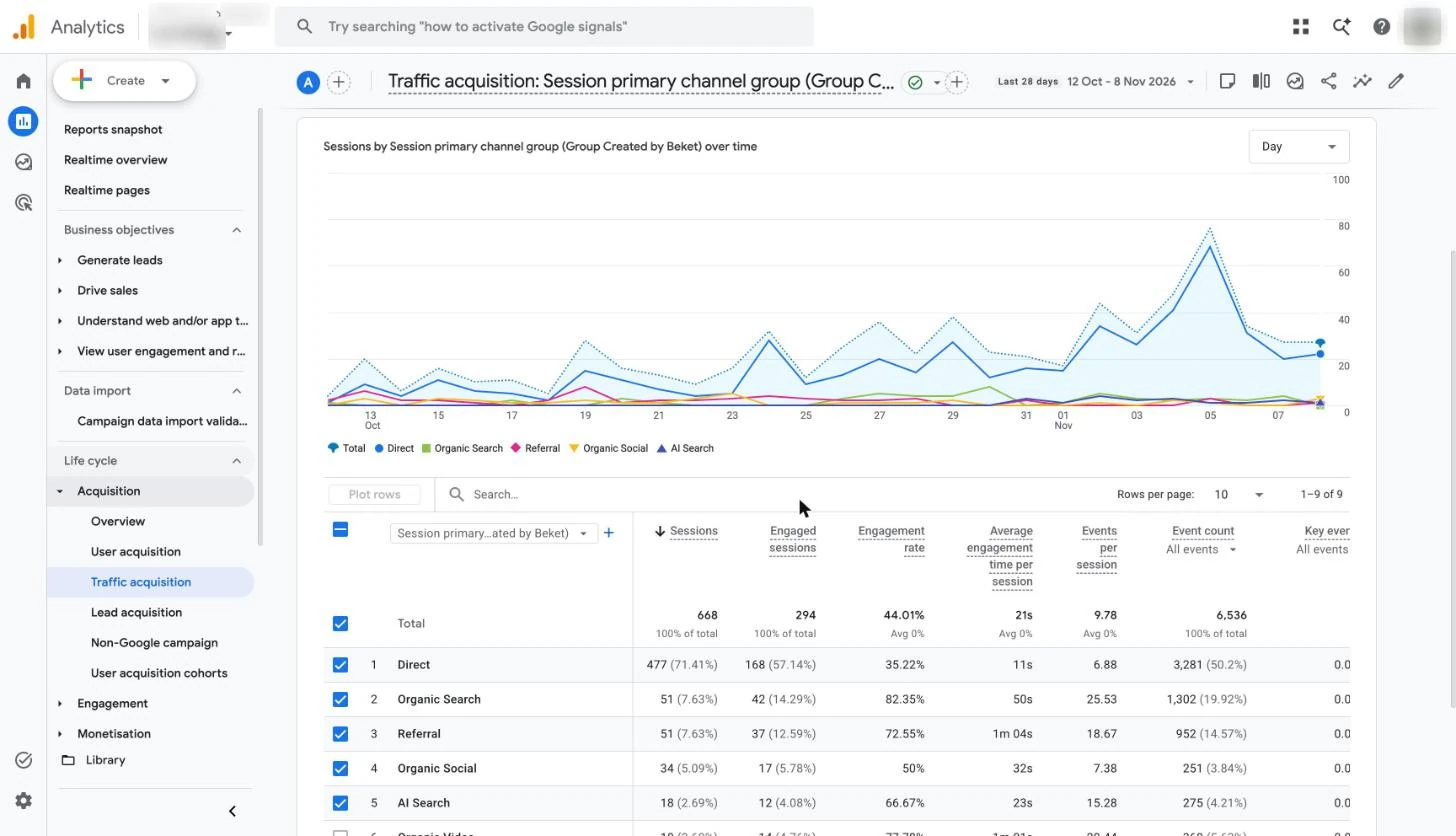
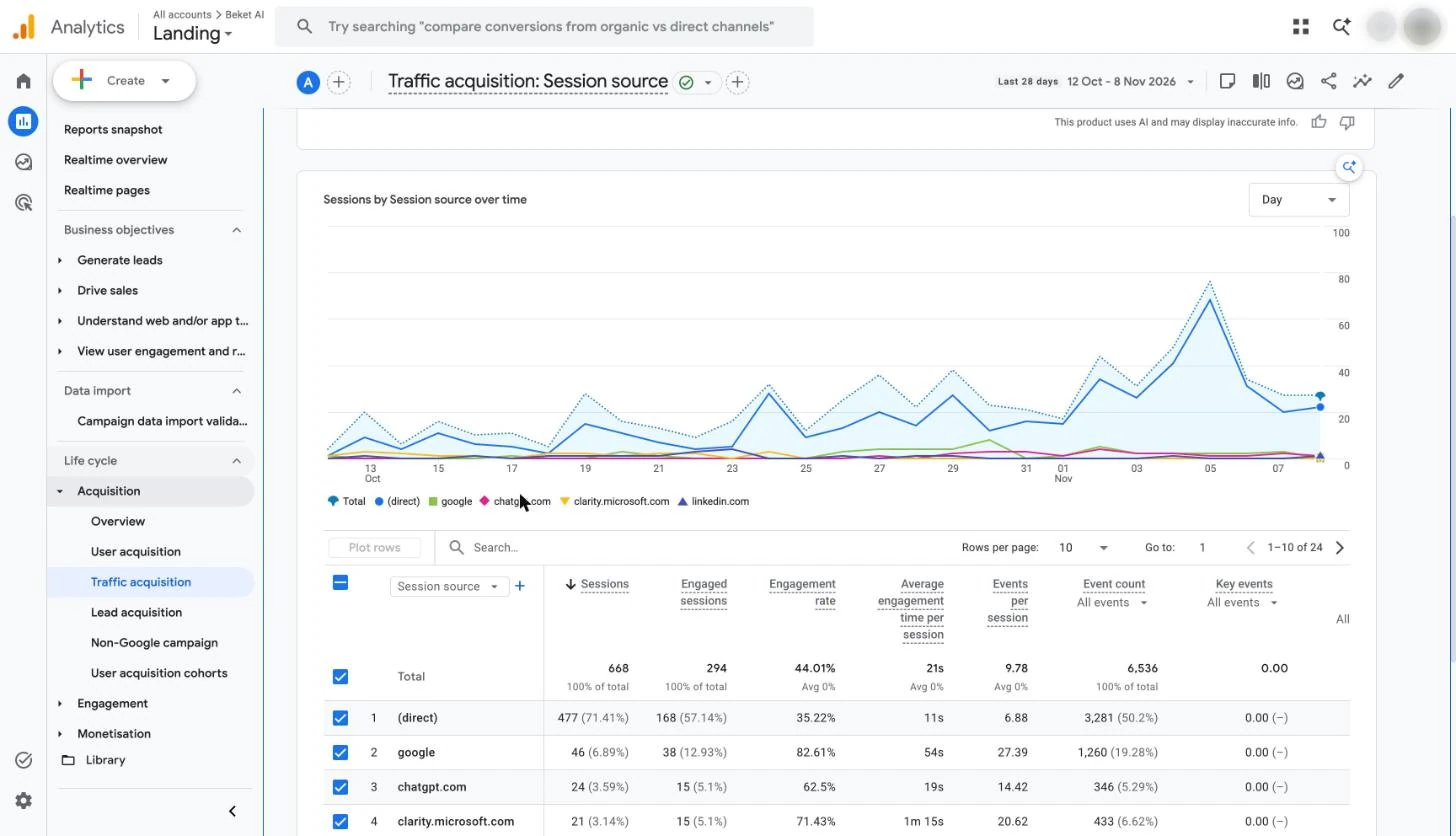
To see which assistant sent each visit, click the + next to the dimension and add Session source as a secondary dimension. You can also switch the report’s primary dimension to Session source to see each referrer in its own row, including chatgpt.com.
If an AI Assistant row still appears, it holds sessions GA4 labelled as AI that your channel didn’t catch first. Add Session source / medium as a secondary dimension, and add any source you find in that row to your regex.
Which pages AI sends people to
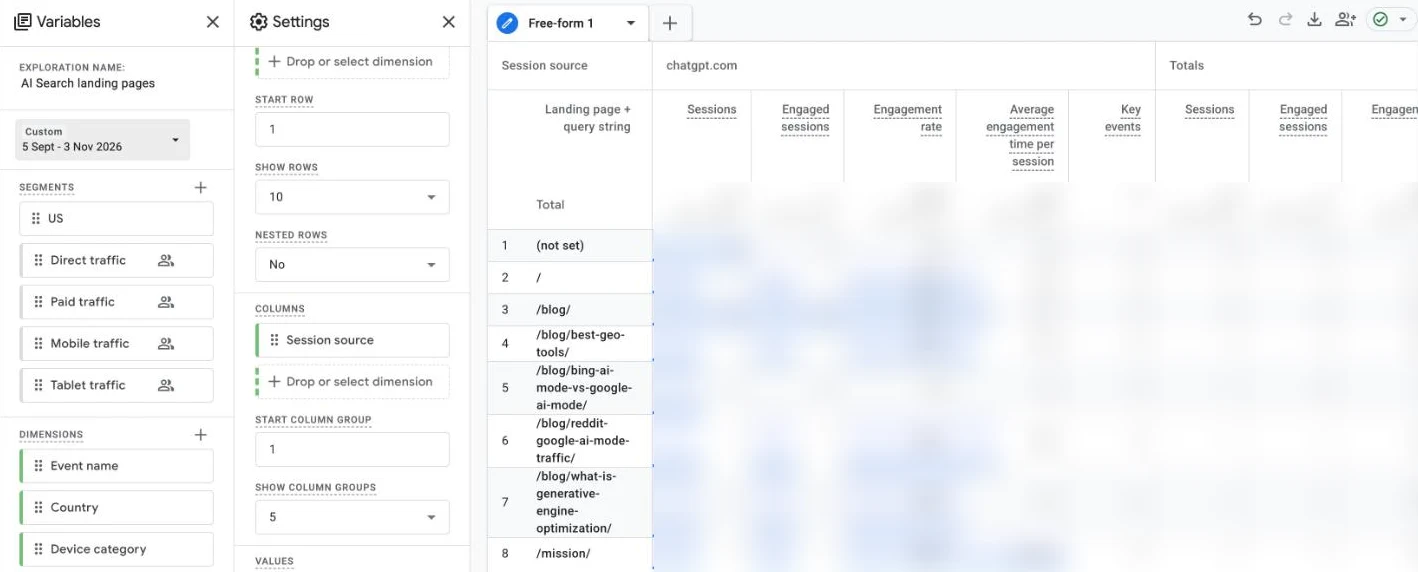
The more useful question is where AI visitors land. Those are the pages AI assistants trust enough to cite and that people trust enough to click. Build it once in Explore → Free form:
| Setting | Value |
|---|---|
| Dimensions | Session primary channel group, Session source, Landing page + query string |
| Metrics | Sessions, Engaged sessions, Engagement rate, Average engagement time per session, Key events |
| Rows | Landing page + query string |
| Columns | Session source |
| Filter | Session primary channel group exactly matches AI Search |
| Date range | As long as your data retention allows |
Explorations can only reach back as far as GA4 keeps event data, and the default is 2 months. Set Admin → Data collection and modification → Data retention to 14 months first. It only applies from the day you change it, so do it now even if you build the report later. Standard reports such as Traffic acquisition aren’t affected.
You can also open the standard Landing page report under Reports → Engagement → Landing page and filter it to Session primary channel group.
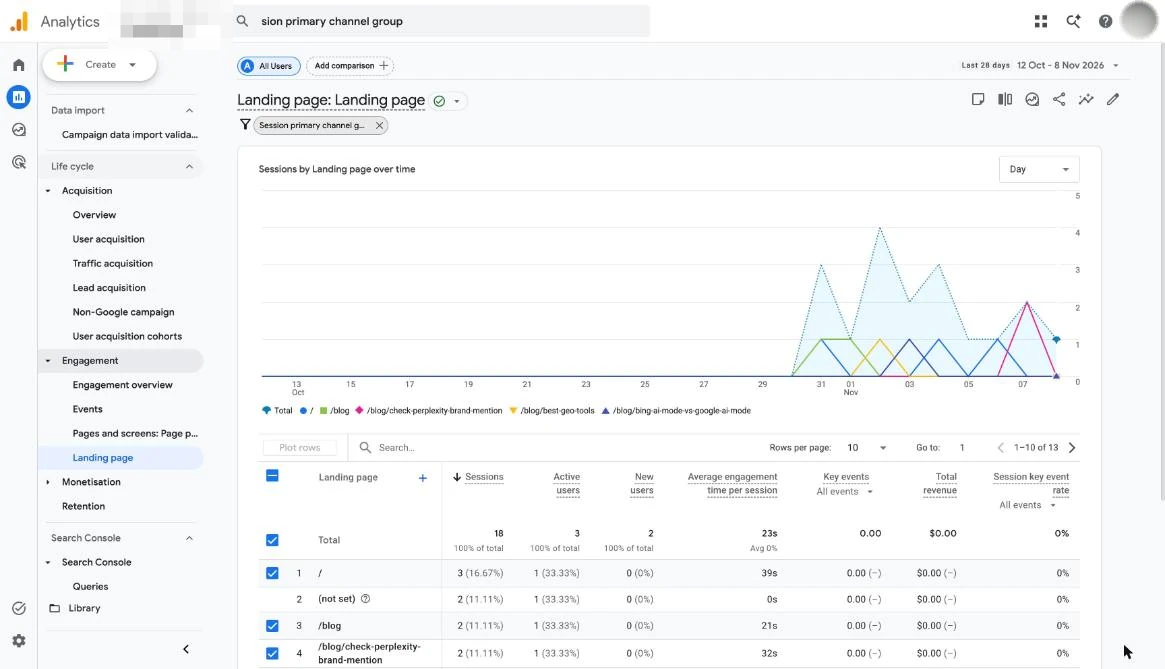
Keep the pages at the top of this list current, and never change their URLs without a redirect. A cited page that breaks loses the citation and the clicks with it.
To compare AI visitors with search visitors on any standard report, add a comparison: Session primary channel group = AI Search against Session primary channel group = Organic Search.
Claude referral traffic
Claude sends visitors with the source claude.ai. GA4 files those visits under Referral unless a channel catches them first. The AI Search channel from Step 1 catches them, because its source rule matches claude.ai.
To see Claude on its own, open the Step 2 exploration and filter Session source to exactly match claude.ai. Treat the number as a floor. Visits from AI apps that strip the referrer land in Direct, as the table above shows.
Step 3: Judge AI visits by outcomes
Sessions say AI found you. Key events say the visit was worth something. Mark the action that matters on your site as a key event, then read it by channel.
Once a key event is marked, add Key events to Traffic acquisition to read it by channel. In this example, the Key events column is still 0 for every channel, including AI Search.
If your conversion is a click to another domain, such as a signup app, GA4 already records it:
- In Admin → Data streams → your web stream → Enhanced measurement, make sure Outbound clicks is on. It sends a
clickevent with alink_domainparameter. - In Admin → Data display → Events, click Create event. Name it
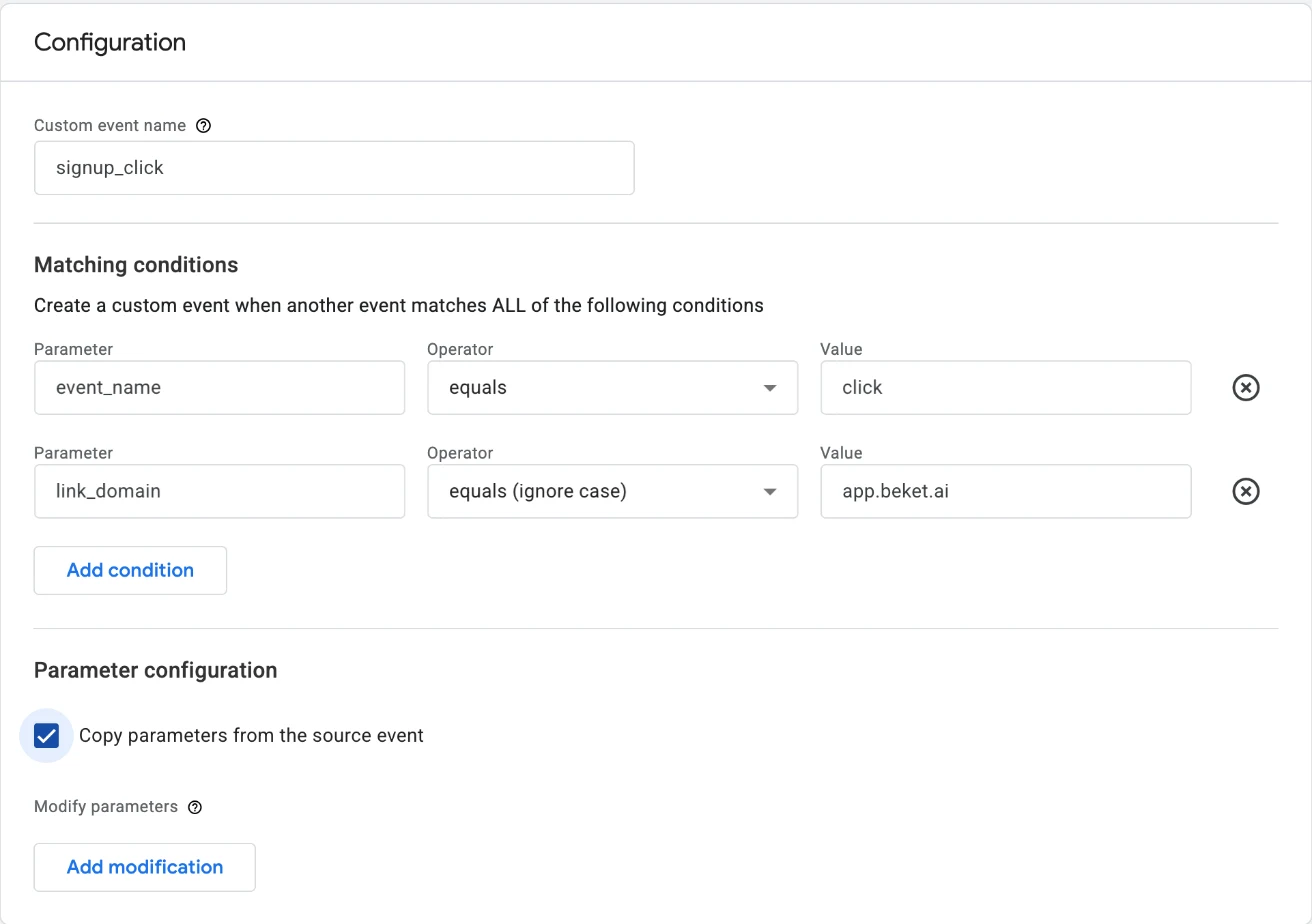
signup_click, then click View more options under Create without code. That opens the form that builds an event from an existing one. - Set two matching conditions:
event_nameequalsclick, andlink_domainequals (ignore case) your app’s domain, for exampleapp.example.com. Tick Copy parameters from the source event solink_urlcomes along, and save the form. - Back on Create an event, turn on Mark as key event. Choose Don’t set a default key event value (a made-up value would show up as revenue) and Once per session, so a visitor who clicks twice counts as one signup. Click Create.
- Add Key events to the exploration from Step 2, filtered to
signup_click.
If your app sits on a different GA4 property, it sees the visitor arrive from your site, not from the AI assistant. Measure the AI conversion where you can still see the source: the click on your own site.
Step 4: Check that it works
- [ ] In a private window, open your homepage with
?utm_source=chatgpt.comadded to the URL. In Reports → Realtime overview, the Active users by First user source card showschatgpt.com. Realtime has no session source, so use a private window: in your normal browser GA4 already knows you, and the card shows the source of your first-ever visit instead. - [ ] Ask ChatGPT or Perplexity a question your site answers, click through from the answer in a private window, and check the source in Realtime.
- [ ] Make sure your redirects keep the query string. If
/pricing?utm_source=chatgpt.comredirects to/pricing/and drops the query, every ChatGPT click to that URL loses its tag. - [ ] The next day, Traffic acquisition shows an AI Search row.
Exclude your own team before you start reading numbers: Admin → Data streams → Configure tag settings → Define internal traffic, then activate the internal traffic data filter. Otherwise your own tests show up as AI Search.
See which prompts send this traffic: run the free 25-prompt audit on Beket AI. GA4 shows who clicked. It can’t show what ChatGPT, Perplexity or Google AI Overview said when nobody clicked. 25 prompts × 3 engines. Beket AI Pro is $49/mo.
Keep it accurate
New assistants appear and old ones change domains. Once a month:
- [ ] Open Traffic acquisition with Session source / medium, filter to
referral, and look for AI domains that aren’t in your regex. Add them to the AI Search condition; the change applies to past data too. - [ ] Watch Direct traffic to deep pages such as guides and documentation. People rarely type those URLs, so an unexplained rise there is often AI app traffic with the referrer stripped.
- [ ] Check Search Console’s performance report for Google search. AI Overviews and AI Mode clicks are counted there, inside Web search; GA4 can’t separate them. For the impressions side, see how to track AI Overview traffic and how to read Search Console’s Generative AI report.
What GA4 will never show you
GA4 measures the last step: a person clicking through. Two earlier steps happen before any click, and neither reaches GA4.
- AI crawlers. GPTBot, OAI-SearchBot, ClaudeBot and PerplexityBot fetch your pages without running JavaScript. Your server or CDN logs see every request. Our Cloudflare guide shows how to read them.
- Answers without a click. Most AI answers mention brands without anyone visiting. The only way to measure that is to ask the AI engines your buyers’ questions and record whether, and how, you are named. That is what Beket AI’s free 25-prompt audit measures.
Use all three together: crawler hits tell you AI can read your site, mentions tell you it recommends you, and the GA4 AI Search channel tells you those recommendations bring people in.
Frequently asked questions
Doesn't GA4 already have an AI channel?
Yes. GA4's default channel group now includes an AI Assistant channel, but it is predefined: you can't see which sources it covers or add one it misses. A custom AI Search channel at the top of your own group catches everything it does, plus any assistant you add to the regex.
Can GA4 track traffic from Google AI Overviews or AI Mode?
Not separately. Clicks from AI Overviews and AI Mode arrive as google / organic, the same as a normal Google result. Google Search Console counts them inside its Web search performance report.
Why does some ChatGPT traffic show up as Direct?
Some AI apps, especially on mobile, open links without sending a referrer. GA4 then has no source to read and files the visit as Direct. ChatGPT adds utm_source=chatgpt.com to its links, which recovers many of these visits as long as your redirects keep the query string.
Does a new AI Search channel apply to past data?
Yes. Custom channel groups in GA4 are applied retroactively, so the AI Search row fills in for earlier dates as soon as you save the group, and again whenever you add a domain to the regex.
Can GA4 see AI crawlers like GPTBot or ClaudeBot?
No. GA4 runs as JavaScript in the visitor's browser, and AI crawlers don't run JavaScript. Their requests only appear in your server or CDN logs.
Related guides
The Complete Playbook for AI Search Optimization (GEO & AEO)
How AI search engines choose sources, how SEO, AEO and GEO fit together, and a 7-step framework for content, crawlers, earned media and measuring AI citations.
Bing Is ChatGPT's Back Door: Why Bing Webmaster Tools Is the Cheapest AI Visibility Lever You're Ignoring
A hands-on guide to setting up and tracking Bing Webmaster Tools for AI search — plus the experiment that made ChatGPT start describing our startup.
Your Analytics Can't See AI Crawlers. Cloudflare Can: A Guide to beket.ai's Cloudflare Integration
How to connect Cloudflare to beket.ai in three steps, and how to read the AI crawler and referral data it returns. Google Analytics misses all of it.